
By using the table designer in Power Apps Studio, you may create and modify Dataverse tables in canvas apps. Without leaving the program you’re using, you can manipulate the data in the table.
Required permissions and limitations.
- To create a table in Dataverse, the environment must have a Dataverse database provisioned. Users must have system customizer or system administrator permissions for the environment where they’d like to build a table. If these conditions are not met, the Create New Table button is disabled.
- The user can only create and edit tables in the current Dataverse environment. If they changed the Dataverse environment using the environment picker, then the Create new table and Edit table options are disabled.
Steps:
- Create a canvas app >> click on the expand menu button >> select data >> Add data >> Create new table.
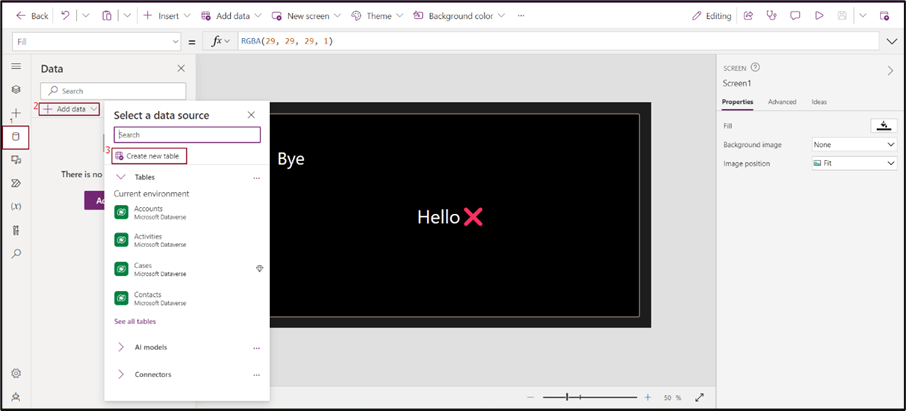
- Give a “Table Name” >> Select advanced settings and give the “Plural Table Name” >> click on create.

- It will pop-up an Edit table window that contains new row using the form. We can add a new column as well as we can edit a table property.

- User can also edit a column property.

- User can create record by providing all required column values.
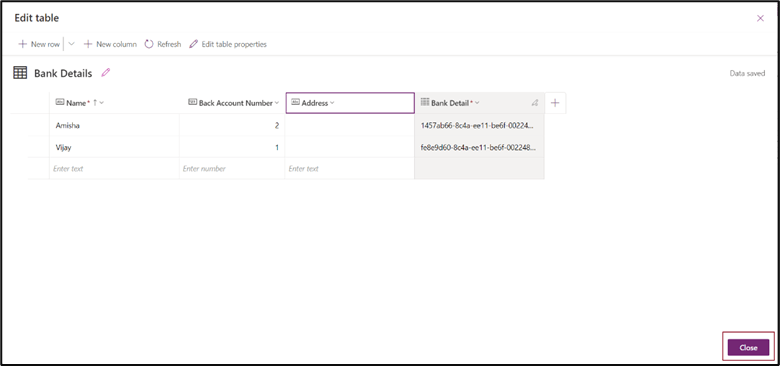
- On a click of a close button the data source will be added to the user’s canvas app as well as the current environment.
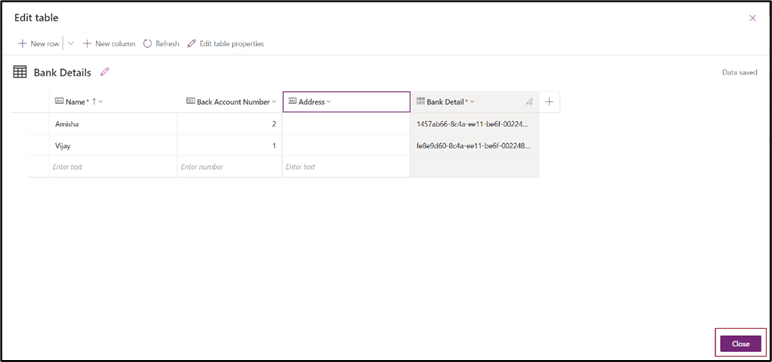
- The user can edit data, refresh the data source as well and remove data source from the canvas app

Conclusion:
We have the freedom to design data sources and record them in the Canvas app thanks to this capability. There is no need to travel to power apps to create a table.
Thank you, Vijay for your valuable inputs to this blog!

 D365 Feeds