
In this blog, I’m going to share about Agent Approvals in Microsoft D365 related to Project Operations. In this short blog, we’re going to have a look at how Agent Approval work and its importance in MSD.
Applies To: Project Operations Integrated with ERP, Project Operations Core
PROBLEM STATEMENT:
For project managers, one of the most time-consuming activities is the review and approval of time, expense, and material entries. Every record submitted by resources needs to be checked against company policies. Manual review often leads to mistakes, delays, and unnecessary back-and-forth between employees and managers.
The challenge is clear: how do we reduce the burden of approvals while ensuring compliance with organizational policies?
SOLUTION: Approvals Agent in Project Operations
Microsoft has introduced the Approvals Agent, a feature within Dynamics 365 Project Operations powered by Microsoft Copilot Studio.
The Approvals Agent automatically reviews time, expense, and material submissions against policy documents uploaded by the organization. Based on these policies:
- If a record meets all rules -> it is marked as Ready for approval.
- If a record fails any rule -> it is marked as Needs review.
This means project managers only need to focus on exceptions, significantly cutting down review time.
SETUP BY ADMIN:
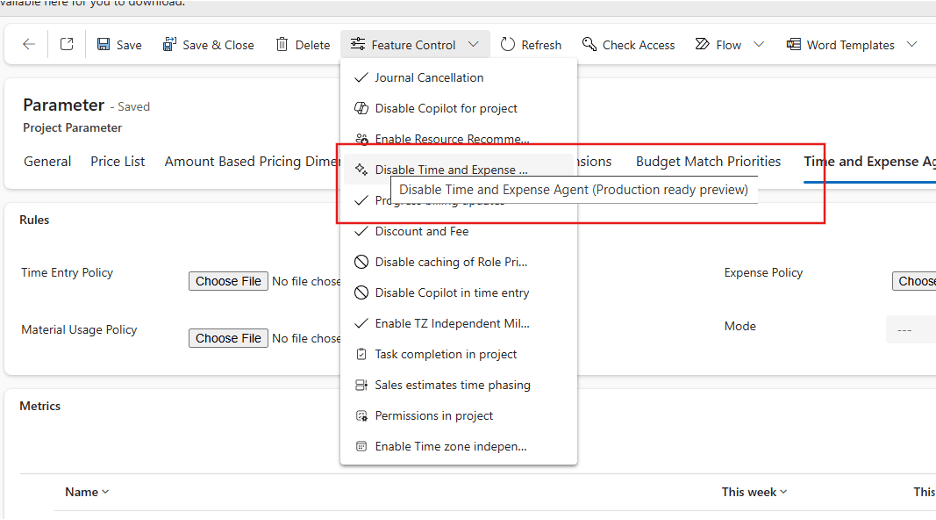
- Admins enable the Time and Expense Agent from Project Parameters → Feature Control.
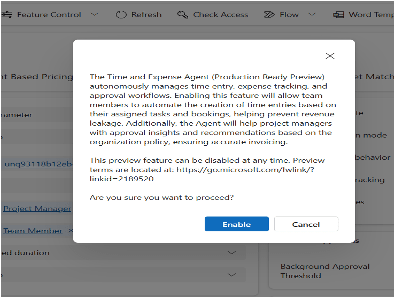
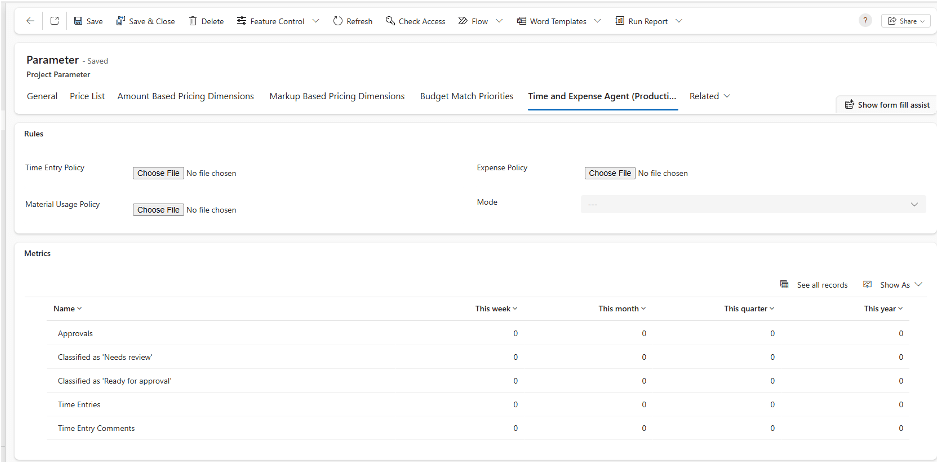
2. A new Time and Expense Agent tab appears, allowing admins to upload policy documents for time, expenses, and materials.
3. The agent can run in two modes:
Classify: Marks records as Ready for approval or Needs review. Final approval is still done manually by the manager.
Classify and Auto Approve: Records that meet policy rules are automatically approved.
BACKGROUND SETTING:
- Set up Connections:
- Sign in to Power apps
- Use the Environment where the agent is installed
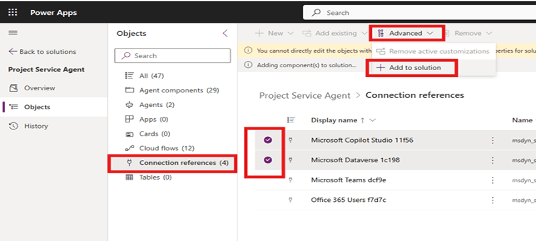
- Select Solution -> Managed Solution -> Open Project Service Agent -> Objects -> Connection reference -> select Microsoft Copilot Studio and Microsoft Dataverse connection references -> add to default solution and save
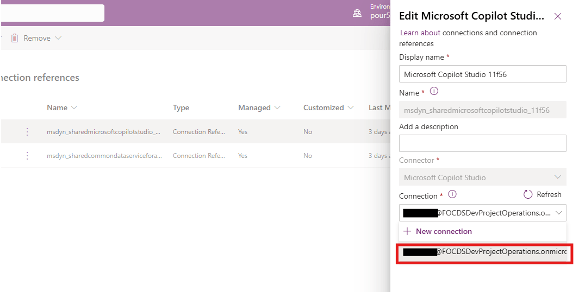
- Go to Default solution ->Object -> Connection reference -> Select Microsoft Copilot Studio, and then select Edit on the command bar
- Dialog opens on the right -> Connection section -> click on new connection
New tab opens -> search Microsoft Copilot Studio -> Click on Create new -> Sign in for which user you want to use this feature

(NOTE: This will be only visible to the user who is using their ID, Also User should have Time and Approval Agent security role, or another role that provides the same or greater privileges)
- Return to the Connection tab and perform same action for Microsoft Dataverse reference to create a connection
- Now Default solution-> Object -> connections -> select the connection -> Edit -> Select the correct user
ACTIVATE THE AGENT:
- Open the Project service agent solution
- Objects -> Cloud flows -> select approval agent trigger flow -> and turn on the flow.
ONCE THE CONNECTION REFERENCE IS MADE AND THE FLOWS ARE TURNED ON. You are set to go with the feature use.
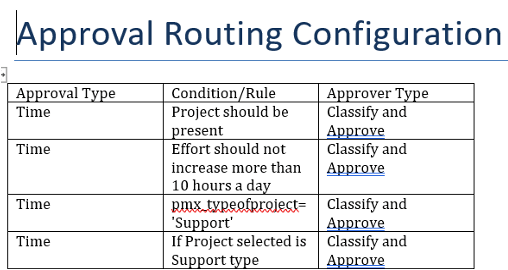
Last thing to configure is to update your Approvals rules
Refer the image/file, you can add expense entry rules as well.
After configuring all the rules, while you login with same user you will see AGENT APPROVAL area in the App.
- After Time entries are submitted, in the back end it check all the rules and auto approves or classify the entries as per the rules.


After classification, managers can view the list of reviewed entries. For each record, they can:
- Approve – confirm and process approval.
- Reject – send it back to the submitter with comments.
- Reassign to Agent – push the record back for reevaluation (useful if policy documents have been updated).
EXAMPLE:
Imagine a consulting company where:
- Policy states that resources cannot log more than 10 hours per day, and expense claims above $200 require receipts.
Here’s what happens with Approvals Agent:
- A consultant submits 8 hours of work and a $150 travel expense (with receipt).
- Agent marks both as Ready for approval since they meet the rules.
- Another consultant submits 12 hours of work and a $300 hotel bill without a receipt.
- Agent marks both as Needs review with the reason, so the project manager can check manually.
Conclusion:
The Approvals Agent in Dynamics 365 Project Operations is a step forward in intelligent automation for project management. By leveraging Microsoft Copilot Studio and well-structured policy documents, organizations can cut down approval times and reduce mistakes.
Thank you, Kalyani for your valuable inputs for this blog.

 D365 Feeds