
Introduction
In this blog, I’m going to share about Time Entry Calendar interface (Preview) for Dynamics 365 Project Operations (version 4.141.0.X or later). In this feature users will gain a more visual and intuitive way to log, edit, and manage time entries—far beyond what the classic grid offered.
Public preview: May 30, 2025; General availability: Sep 2025
Problem Statement
In the existing setup, users rely heavily on the Time Entry Grid to input and review hours. Teams often face challenges such as:
- Identifying which entries are missing or duplicated,
- Quickly adjusting time entries across dates or tasks,
- Visualizing hour distribution over days/weeks, and
- Comparing logged hours to targets in one glance.
These limitations slow down task logging, increase errors, for managers and team members.
UPDATE: Time Entry Calendar (Preview)
To address these challenges, Microsoft has introduced the Time Entry Calendar, a calendar-style interface integrated into Project Operations.
Key features include:
- Daily / Weekly / Monthly / Agenda views of time entries
- Color-coded statuses (Draft, Submitted, Approved)
- Ability to create, modify, copy, delete, submit, or recall entries directly from the calendar
- Charts and visual snapshots comparing logged vs. target hours
- Declutter mode to handle entries that default to midnight
How It Works:
Enabling the Feature
- Upgrade your environment to version 4.141.0.X or newer.
- Sign in as a System Administrator.
- Go to Settings -> Parameters -> Project Parameters.
- In Feature Control, select “Enable Time Entry Calendar (Preview).
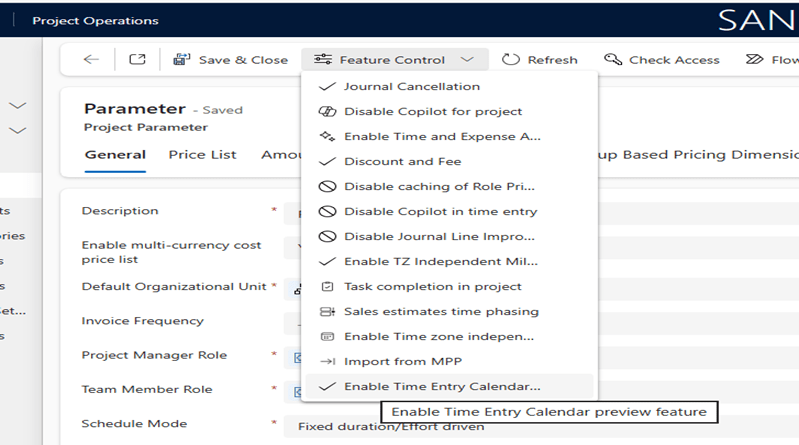
- After enabling, the Calendar menu appears under My Work in Project Operations and Team Member apps.
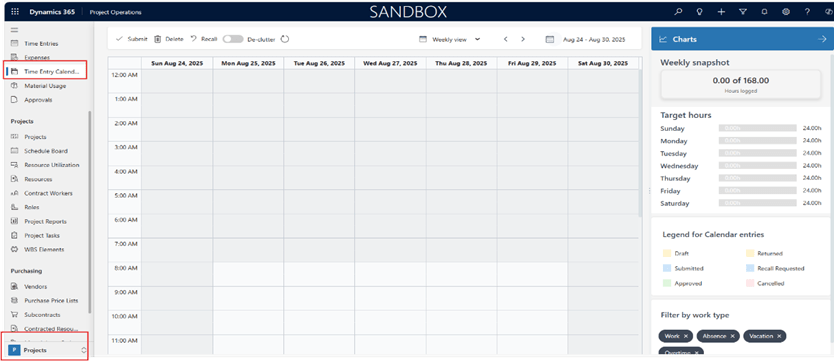
Viewing Entries
- Head to My Work ->Calendar.
- The current week’s entries display by default.
- Each entry shows: task name, project, duration, Type, Start, End, Description and comments.
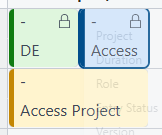
- Colors indicate state:
- Yellow = Draft / Returned
- Blue = Submitted / Recall Requested
- Green = Approved
Creating Entries
- Click or drag a blank slot to open a Create Time Entry dialog.
- Start time auto-fills based on your selection.
- Duration defaults to 30 mins (or matches dragged length).
- The right-hand side displays only projects/tasks you are actively assigned to.
- Fill in the details and save to log the entry.
You can also copy entries using Ctrl + C / Ctrl + V. Pasted entries carry most fields (project, task, description), while the duration adjusts based on where they’re pasted.
Editing Entries
- Move: Drag to another date/time.
- Resize: Extend or shorten using the handles.
- Edit details: Double-click to open the edit dialog.
- Locked entries (Submitted, Approved, etc.) are not editable.
Submitting / Recalling / Deleting
- Submit: Select Draft or Returned entries -> Submit -> status turns blue.
- Recall: Select Submitted/Approved entries → Recall. Approved ones require a reason.
- Delete: Select Draft/Returned entries and delete them.
UI
Use the view picker to toggle between Daily, Weekly, Monthly, or Agenda views.
Use the date Icon to switch the dates
Use the refresh icon to refresh the page
Submit all the records directly by clicking on submit button
Tracking & Filtering
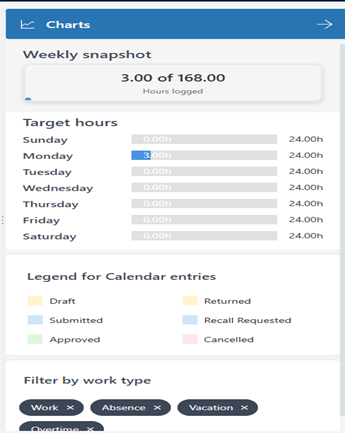
- Expand Charts for a snapshot: total logged vs. target hours, daily trends.
- Filters let you narrow visibility by entry status or type.
EXAMPLE:
Sarah is a consultant who logs time across multiple projects.
- On Tuesday, she clicks a blank slot and enters 2 hours for Project Next Gen → Designing.
- On Wednesday, she copies (Ctrl + C, Ctrl + V) Tuesday’s entry and adjusts the task field.
- On Thursday, she drags her Wednesday entry to a new time slot due to a shift.
- At week’s end, she views the weekly snapshot chart and sees she logged 38 out of 40 target hours—making a quick decision to catch up.
Before vs After: Time Entry Experience
| Aspect | Before (Grid View) | After (Calendar View – Preview) |
| User Interface | Tabular grid, requires manual entry for each day/task | Visual calendar (Daily/Weekly/Monthly/Agenda views) |
| Ease of Entry | Manual typing of hours -> repetitive and error-prone | Click, drag, resize, or copy entries directly on calendar |
| Status Visibility | Must open each entry to check Draft/Submitted/Approved | Color-coded (Yellow = Draft/Returned, Blue = Submitted, Green = Approved) |
| Editing Flexibility | Open form -> change values -> save | Drag-and-drop to new time slot, resize, or double-click to edit |
| Tracking Progress | Requires reports/dashboards | Built-in charts for logged vs. target hours, daily/weekly trends |
| Clarity | Hard to spot missing/duplicated entries | Tooltip details make it clear immediately |
| Productivity Impact | Slower, manual, error-prone | Faster, intuitive, reduces errors, boosts efficiency |
Conclusion
The Time Entry Calendar (Preview) brings a fresh, user-friendly approach to logging and managing time in Project Operations. While still in preview, it promises to enhance productivity and clarity by enabling users to visualize their hours, correct entries quickly, and remain aligned with targets—all within a single, intuitive interface.
Thank you, Kalyani for your valuable inputs to this blog!

 D365 Feeds