
Introduction
In this blog, I’m going to continue from our previous discussion on the Time Entry Calendar (Preview) feature in Microsoft Dynamics 365 Project Operations— the Declutter Mode (Preview Only).
This update improves the readability and visual organization of your Time Entry, especially for users who often log time without specifying a start time.
Previously, when users created time entries through the standard time entry grid without defining a start time, Project Operations automatically assigned a default start time of 12:00 AM (midnight). While this was functionally correct, it created a visual issue — multiple entries appeared stacked together at midnight.
The Declutter Mode aims to fix this by rearranging time entries for a clearer, more structured view.
Problem Statement
When users enter time without selecting a specific start time, the system defaults to 12:00 AM. This leads to multiple entries being shown at the same position (midnight) on the Time Entry Calendar, causing a cluttered and confusing display.
Example Scenario:
Imagine a user logs the following entries without start time for the same date:
- Task A – 8 hours
- Task B – 4 hours
- Task C – 2 hours
All these entries appear stacked together at 12:00 AM, making it visually difficult to identify or review them individually.

UPDATE: Declutter Mode (Preview Only)
Declutter Mode introduces a smart visual re-arrangement of time entries. Instead of clustering all “no-start-time” entries at midnight, the calendar now spreads them across your working hours, beginning from the start of your working day.
Example
Let’s assume your working hours are from 8:00 AM to 5:00 PM, and you have two entries created without a defined start time, each lasting 2 hours.
- The entry created first will appear from 8:00 AM to 10:00 AM.
- The entry created second will appear from 10:00 AM to 12:00 PM.
This visual rearrangement makes your calendar cleaner and more readable
How to Enable Declutter Mode
Enabling the Feature
- Navigate to the Time Entry Calendar for your desired week.
- Check if you have time entries starting at 12:00 AM.
- Turn ON the Declutter option (by default, this option is OFF).
- The system will now rearrange those entries sequentially, starting from the beginning of your working hours (for example, 8:00 AM).
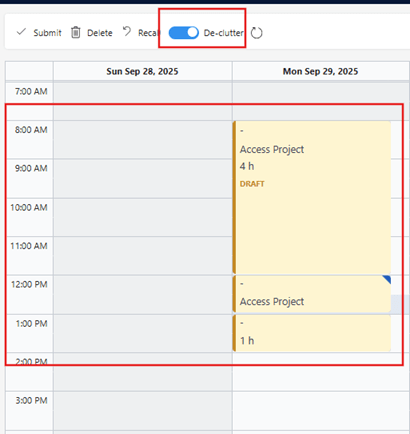
Declutter Option on the Time Entry Calendar showing rearranged entries starting from 8:00 AM
Declutter Mode Behavior:
- Which Time entries are Decluttered?
Declutter Mode only affects:
- Time entries without a manually set start time, i.e., defaulted to 12:00 AM.
- Entries that already have a start time remain unchanged.
- How are the new positions determined?
The system repositions the affected entries based on the user’s:
- Working hours
- Created On timestamp of the record
Entries are displayed sequentially:
- The first entry created appears at the start of the working day.
- Subsequent entries follow in the order they were created.
Example:
A user’s working hours are 8:00 AM – 5:00 PM, and they created three entries (each lasting 2 hours):
- Project Planning
- Client Discussion
- Documentation
After enabling Declutter Mode:
- 8:00 AM – 10:00 AM = Project Planning
- 10:00 AM – 12:00 PM = Client Discussion
- 12:00 PM – 2:00 PM = Documentation
Making Changes in Declutter Mode:
It’s important to understand that Declutter Mode only affects display — it does not actually change the start time.
However, if you edit and save a time entry while in Declutter Mode, the system will save the visually displayed (decluttered) start and end times as the actual values.
Recommendation:
Avoid making edits to time entries while Declutter Mode is turned ON. If you need to make updates, turn off Declutter mode first to avoid changing the real start and end times.
Conclusion
The Declutter Mode (Preview) in Dynamics 365 Project Operations is an addition to the Time Entry Calendar experience. It helps users view entries clearly by redistributing those with a 12:00 AM start time into a visually cleaner format.
While this feature doesn’t alter the data, it enhances the visual clarity of daily time logs. Users should refrain from editing entries in this mode to avoid unintended time changes.
Thank you, Kalyani for your valuable inputs to this blog!

 D365 Feeds