
Introduction
In this blog, I’m going to share about a new capability in the Power Platform: The Prompt Column (Preview) in Dataverse. This feature brings the power of generative AI directly into your data tables, allowing makers to create AI-driven text outputs based on other columns within the same record.
Traditionally, if you wanted to generate summaries, categorize records, or draft responses, you’d rely on Power Automate flows, plugins, or external AI connectors. That meant extra steps, more configurations.
With the Prompt Column, you can embed intelligence directly in your data model. You define a prompt a natural language instruction and the system dynamically generate text output based on the values in other columns of the record.
Problem Statement
One of the challenges in most business apps is context generation. Data often exists in isolation descriptions, titles, and notes are stored separately, and users must interpret meaning manually. This disconnect means that insights are locked behind manual work or external processes, slowing down decision-making and reducing the real-time value of your data.
Solution
The Prompt Column (Preview) helps bridge this gap by letting you define AI prompts directly within Dataverse. Using natural language, you can instruct the system to generate text based on other columns — no flow, plugin, or external integration required.
For example, you can create a prompt like:
“Summarize the case title and description in 3 bullet points.”
and the column will automatically produce an AI-generated summary whenever the record is viewed or refreshed.
This makes your data tables smarter and your forms more informative — enabling use cases such as:
- Summarizing long text fields (e.g., case details or project notes).
- Classifying records by category or sentiment.
- Drafting professional email responses or summaries.
- Generating insights or recommendations for next steps.
Steps to Create and Test a Prompt Column in Dataverse
- Open Your Table
Go to your Dataverse table (for example, Cases, Opportunities, or Projects). - Add a New Column
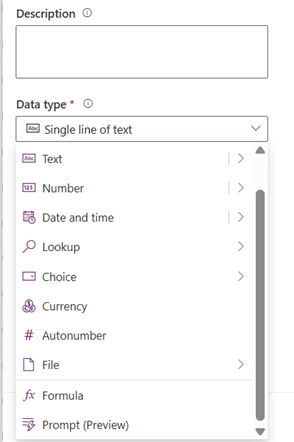
Click Add column → choose Prompt (Preview) as the data type.
Define the Prompt
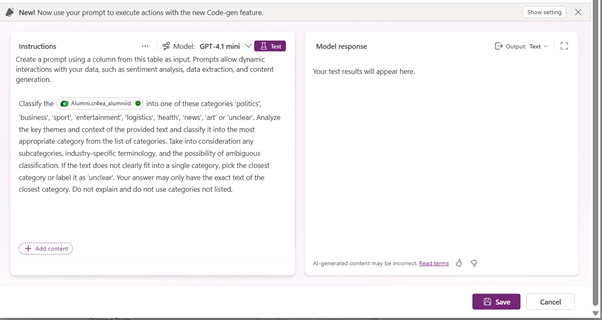
Write your natural language instruction
Add Input Columns
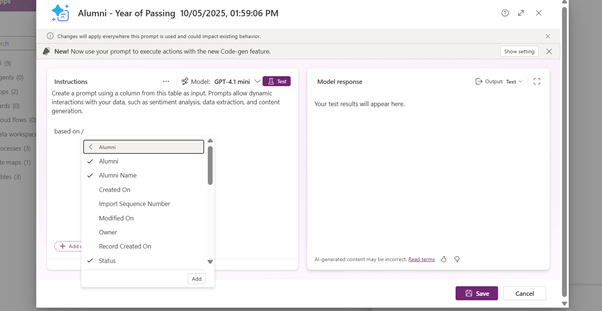
Select which columns should be used as input (like Title, Description, Priority, etc.)
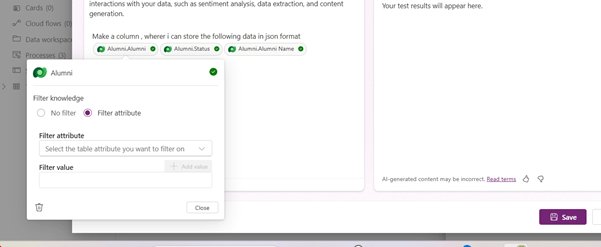
You can always filter the attributes as well so have more precise data according to your needs.
Save and Add to Form
Add the prompt column to a form in your model-driven app so you can visualize the output.
Test the Output
Open or create a record, populate your input fields, and let the prompt generate text automatically.
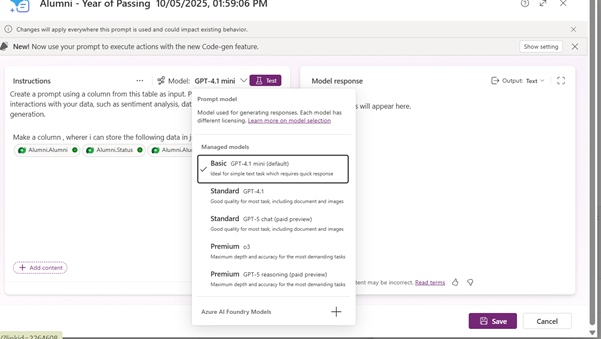
You can always play with the available models and see which suits best.
Refine or Iterate
Adjust your prompt for tone, detail, or format. For example, you can make it formal, concise, or bullet-style depending on your use case.
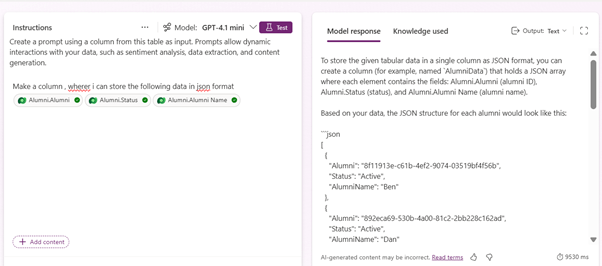
So that’s pretty much about it , for now the prompt column feature only gives you text as the default data type. You can further play around with the feature and always try new things eg: I tried generating a Json format with some attributes in my table which could be used in power automate flows or further processing
Conclusion:
As this feature matures, it’s likely to evolve beyond record-level prompts, potentially opening doors to contextual AI summaries across relationships and tables. For now, it’s a great opportunity to experiment, learn, and rethink how you make your data tell its own story.
Thank you Aslin, for your valuable inputs to this blog!

 D365 Feeds