
Introduction
In this blog, I’ll share insights about an exciting advancement in Copilot Studio, the integration of the Dataverse MCP (Model Context Protocol) Server. This feature provides a seamless bridge between Microsoft Dataverse and Copilot Studio, enabling developers and makers to build intelligent copilots that can directly interact with enterprise data stored in Dataverse. Let’s dive into what this means, why it matters, and how you can use it effectively.
Public preview: October 2025 (Microsoft Dataverse 2025 release wave 2)
General availability: Planned for March 2026
Problem Statement
Until now, connecting Dataverse data with Copilot Studio required multiple connectors, authentication configurations, or manual API setups. Makers had to define custom plugins, write Power Automate flows, or expose APIs to interact with Dataverse tables.
This created friction for business users and slowed down the delivery process for conversational bots that needed to fetch, interpret, and act on business data.
The challenge for us is: How can we enable Copilot Studio agents to natively access Dataverse resources and execute operations securely and efficiently, without coding overhead or complex integration setups, while ensuring tools and resources stay dynamically updated?
Solution: Dataverse MCP Server Integration for Copilot Studio
Microsoft has introduced the Dataverse MCP Server as part of the new Copilot Studio extensibility model. This integration allows Copilot Studio to use Microsoft Dataverse as a native data backbone using the MCP (Model Context Protocol) protocol for secure and intelligent data exchange. The MCP Server acts as a runtime data gateway, enabling Copilot agents to interact with Dataverse entities such as accounts, leads, contacts, projects, and custom tables directly within Copilot Studio dialogs.
Key capabilities of this new integration include:
- Native data access: Directly query, insert, update, or delete records from Dataverse using Copilot prompts or flow logic.
- Context-aware intelligence: Copilot can reason over structured Dataverse data to generate more accurate and contextual responses.
- Secure authentication: Uses Azure AD and environment permissions for access control, ensuring enterprise-grade security.
- Connector-free experience: No need to configure Power Automate connectors, communication happens directly through MCP.
- Low-code extensibility: Combine conversational logic with Dataverse operations through declarative configuration.
How to Use the Dataverse MCP Server in Copilot Studio?
Prerequisite: Enable “Dataverse Model Context Protocol” in Power Platform.
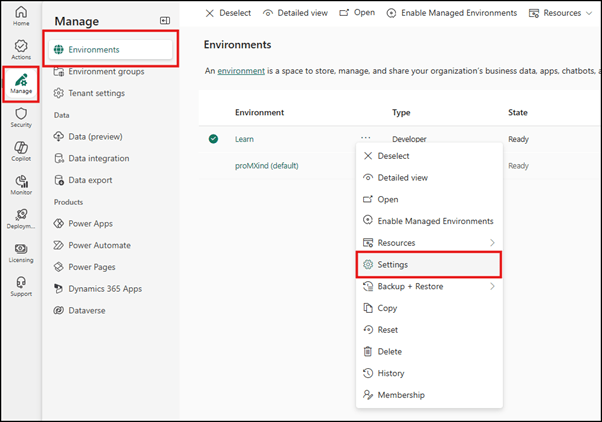
Open admin.powerplatform.microsoft.com and navigate to your environment. Go to Settings.
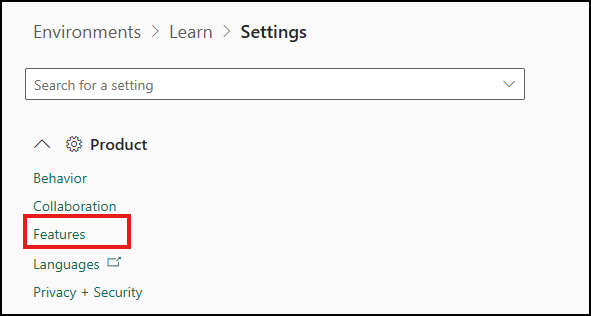
Expand Product dropdown and select Features.
Find and enable “Enable Dataverse Model Context Protocol” and click on Save button located at the bottom right corner.

Open Copilot Studio:
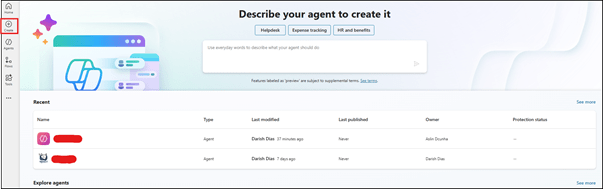
- Go to copilotstudio.microsoft.com and click on Create from left navigation.
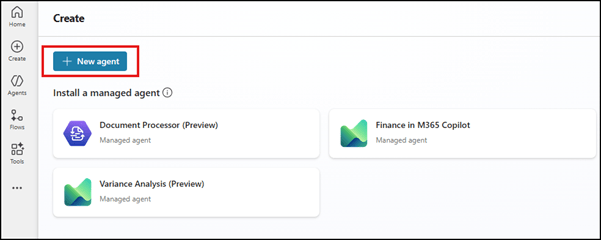
- Click on “New agent” to create a new agent with MCP connector.
- Click on “Configure”, enter a desired name for your agent, add a description (if needed). Inside instructions: Describe what this agent should do, define its tone, and outline any rules or guidelines it must follow.
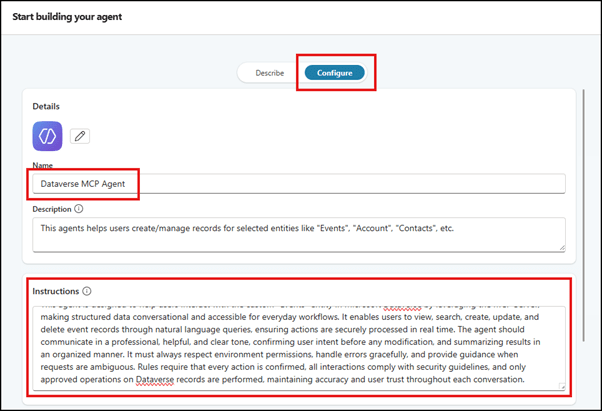
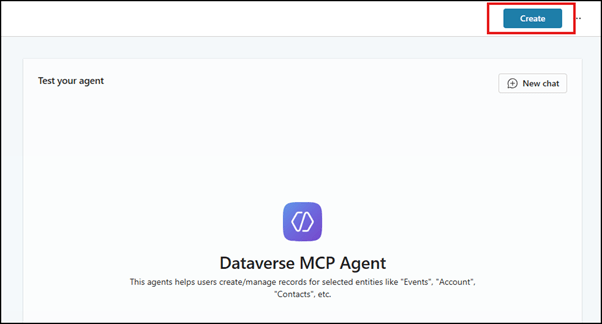
- After entering the necessary details, click on “Create” button located at top right corner.
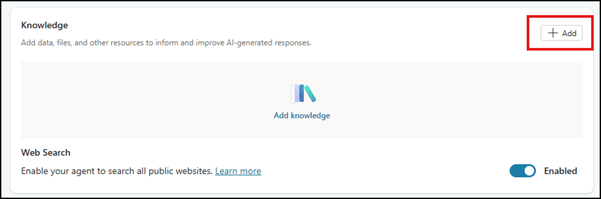
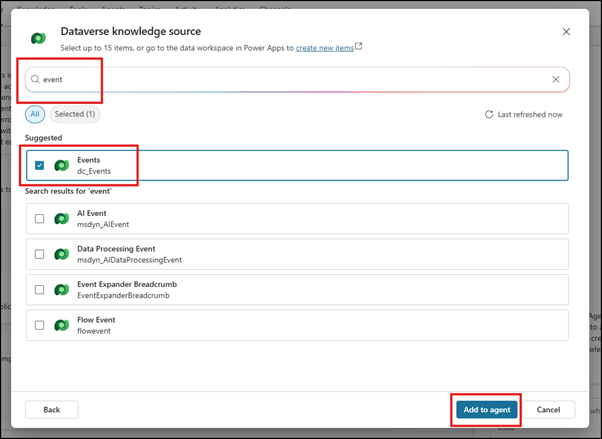
- On the knowledge section, click on “+ Add” button.
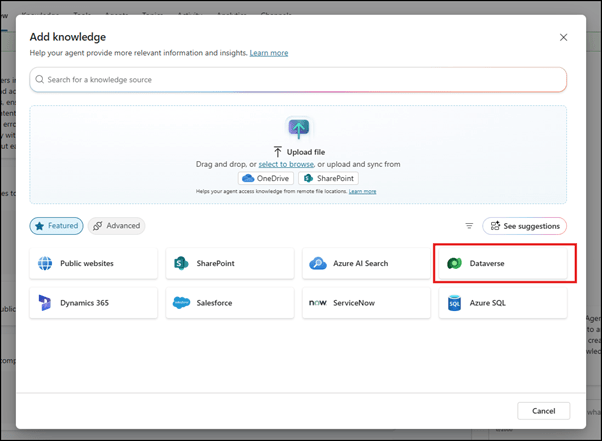
- Select “Dataverse” as our knowledge base.
- Look for your relevant entities, select and click on “Add to agent”.
- On the tools section, click on “+ Add tool” to add our Dataverse MCP server.

- Search “MCP” and select “Dataverse MCP Server”.
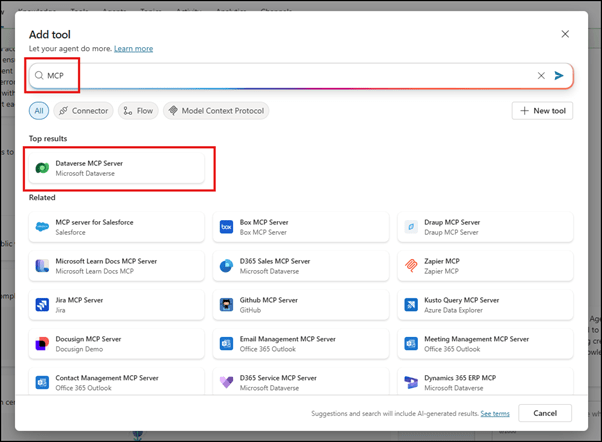
- Click on “Add and configure”.

- This way you can verify if your configuration is correct.

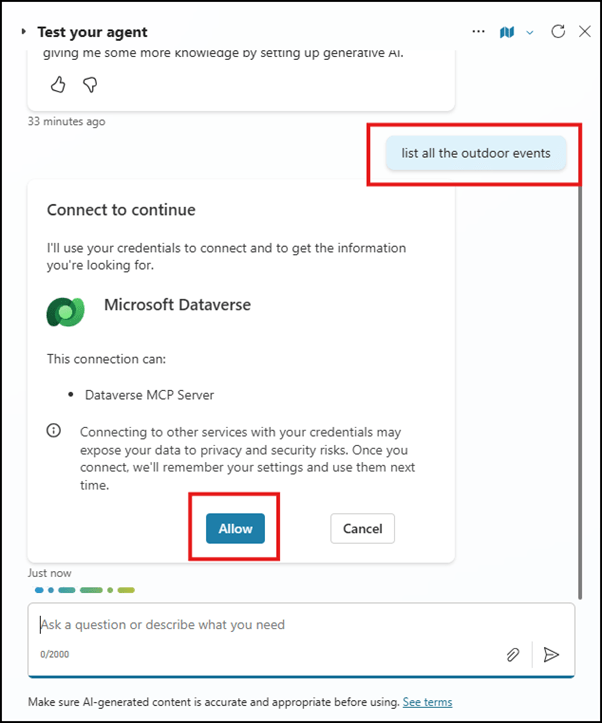
- Let’s test our agent! On the right side you’ll see a chat window to enter prompt. Enter a prompt of your choice to make the agent perform action (list records, create, delete, etc.). Allow the agent to access your environment (This is a one-time process during first use).
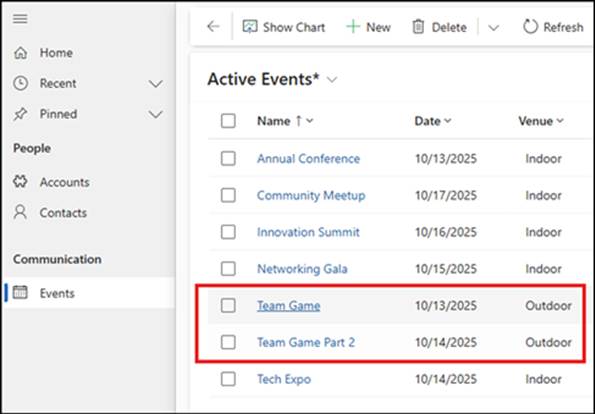
- The response I received from the agent is accurate according to the data in context.
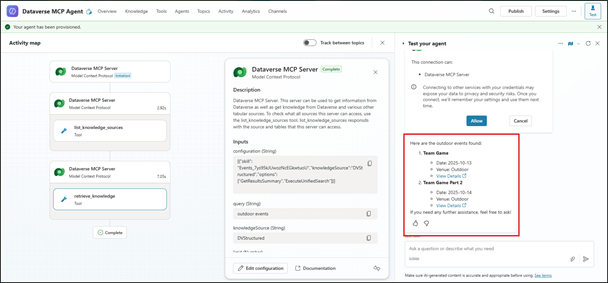
- The above response suggests that there are 2 outdoor events in the “Events” table, which is true.
- Here is another prompt to create a new record in CRM, let’s see if our agent can create some records based on specificity.
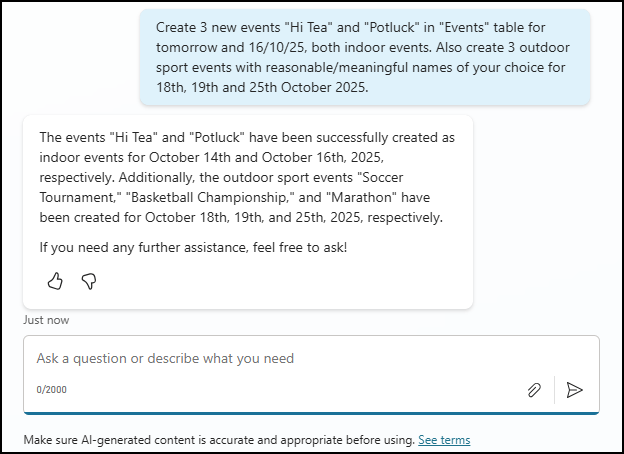
- As expected, the agent created the records we needed without us needing to open our Dynamics 365 CRM.
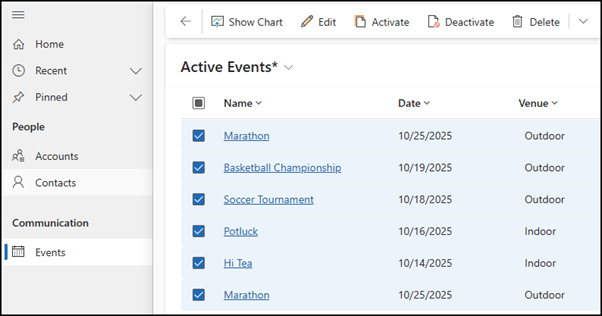
This way we can easily setup MCP server for our agent and allow our agent to perform Dataverse actions.
Considerations and Limitations
- Currently supports read and write operations on standard and custom Dataverse tables.
- External data sources (like SQL, SharePoint, or Azure Data Lake) are not yet supported through MCP.
- This feature is available only for US-based environments.
- MCP logging and telemetry are available only through Azure Monitor integration.
Conclusion
The Dataverse MCP Server integration in Copilot Studio represents a major leap in enterprise-grade AI and data connectivity. By connecting Copilot logic directly to Dataverse, makers can now build intelligent, context-aware copilots that act on live organizational data all without writing code or managing connectors. The dynamic nature of MCP ensures that as tools and resources are updated or removed on the server, Copilot Studio automatically reflects these changes, keeping your agents current and reliable. As this feature evolves toward general availability, expect deeper support for multi-environment management, cross-source integration, and advanced AI reasoning on relational data. If you’re working in the Power Platform or Dynamics 365 ecosystem, now is the perfect time to explore how Dataverse or other MCP Server can enhance your Copilot experiences.
Thank you, Darish for your valuable inputs to this blog!

 D365 Feeds