
Introduction
In this blog, I’m going to talk about another productivity-boosting enhancement in Dynamics 365 Project Operations, the Time Entry Delegation (Preview) feature.
This feature, released as a production-ready preview on September 24, 2025, allows a resource to log, modify, or submit time entries on behalf of another user for a limited duration.
In simple words, if someone is on leave or unavailable, another trusted team member (delegate) can take over their time entry responsibilities without disturbing project timelines.
Problem Statement
In traditional setups, only the assigned resources could log or submit their time entries.
This created challenges when:
- A team member was on vacation or leave, and their time needed to be logged.
- The project billing or timesheet approval deadlines couldn’t wait for their return.
These scenarios resulted in missing time entries, delayed invoicing, and reporting inconsistencies.
To address this gap, Microsoft has introduced the Time Entry Delegation feature.
UPDATE:
The Time Entry Delegation feature enables a resource (called the delegator) to temporarily assign another user (called the delegate) who can:
- View, create, modify, and submit time entries on their behalf.
- Work only within the approved delegation period (Start and End Dates).
Enabling Time Entry Delegation (Preview)
Enabling the Feature
- Ensure your Project Operations environment is version 4.145.0.X or later.
- Sign in as a System Administrator.
- Navigate to: Settings → General → Parameters.
- Go to the Project Parameters page → Feature Control field.
- Select Enable Time Entry Delegation (Preview) → Click OK.
- If you see “Disable Time Entry Delegation (Preview),” the feature is already enabled.
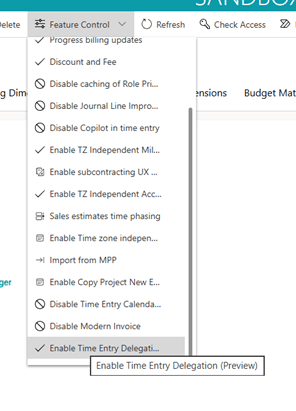
Once activated, a new menu item called “Delegates (Production Ready Preview)” will appear under the My Work section in both the Project Operations and Team Member apps.
Setting Up a Delegate
After enabling the feature, setting up a delegate is simple:
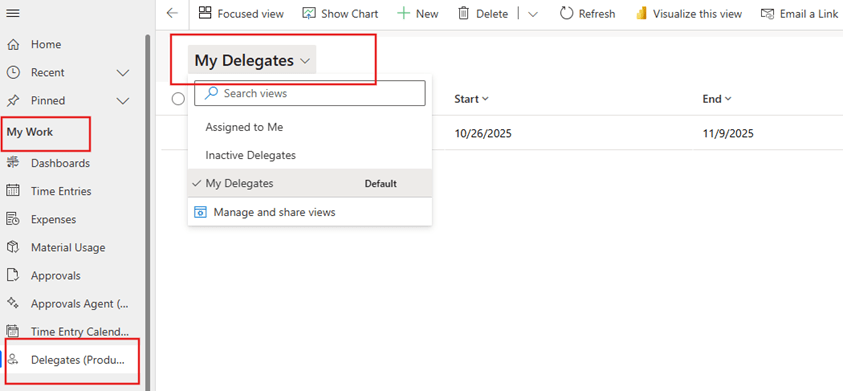
- Go to My Work → Delegates.
- In the My Delegates view, click New.
- In the form, fill out the details:
- Delegate: Choose a bookable resource (the person who will act on your behalf).
- Start Date: First day the delegate gains access.
- End Date: Last day the delegate can act on your behalf.
- Click Save or Save & Close.
Once saved:
- You become the Delegator, and
- The selected person becomes your Delegate.
Other Views Available
- Assigned to Me: Shows who have assigned you as their delegate.
- Inactive Delegates: Lists all past delegations that are no longer active.
Logging Time as a Delegate
When you are assigned as a delegate, you can log and manage time entries for another user:
- Go to Delegates → Assigned to Me.
- Check the list of users who have delegated access to you.
- Within the delegation period, you can:
- View time entries for the delegator.
- Create new entries/ Modify, submit, delete, or recall entries.
Example:
Let’s say William is on leave from October 7th to 11th.
He assigns John as his delegate for that period.
Now, during these dates, John can:
- Create and submit William’s daily time entries.
- Make corrections to any draft entries/Recall or resubmit them if needed.
After October 11th, delegation automatically ends, and Priya regains full control of her time entries.
Time Entry Experience for Delegates
When delegation is active, a few changes appear in the Time Entry form:
- The Bookable Resource field has become mandatory.
- Delegates can choose between:
- They themselves, or the delegator (original user).
Other fields (like Project, Task, and Role) automatically adjust based on the delegator’s assignments. This ensures that the delegate only logs time on projects or tasks relevant to the original user.
Note: These changes apply only during weeks when a delegate relationship exists. Outside of delegation weeks, time entry behavior remains normal.
Tracking Time Entries Logged by Delegates
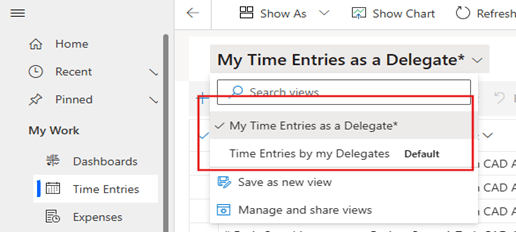
Both the delegate and delegator have dedicated views:
For Delegates
- My Time Entries as a Delegate
- Displays all entries you created for your delegators during the active period.
For Delegators
- Time Entries by My Delegates
- Shows all time entries your delegates created on your behalf.
Audit Trail for Delegated Time Entries
During the preview phase, Project Operations tracks delegated actions using two key fields:
- Created By – Identifies who created the time entry.
- Modified By – Identifies who last edited or submitted it.
Current Limitations
- A user cannot assign multiple delegates with overlapping date ranges.
- Example: You can assign one delegate from Oct 1–10 and another from Oct 11–20, but not both from Oct 1–10.
- Time entries created by the delegator and later modified by the delegate don’t appear in the “Time Entries by My Delegates” view.
Conclusion
The Time Entry Delegation (Preview) feature is a major productivity booster for organizations using Dynamics 365 Project Operations.
It brings flexibility to resource management by allowing temporary delegation of time logging and submission responsibilities — ensuring that project timelines, invoices remain accurate and up-to-date, even during employee absences.
Thank you, Kalyani for your valuable inputs to these blogs!

 D365 Feeds