
Introduction
In this blog, I’m going to show a way to change the theme of your model-Driven App without turning off modern look. This feature lets administrators and developers customize colors, fonts, and branding while keeping the sleek modern Fluent 2 design system intact.
Public preview: May 5, 2025 (2025 Release Wave 1)
General availability: December 2025 (now generally available)
Problem Statement
Traditionally, customizing model-driven app themes meant using classic themes that conflicted with the new modern refreshed look (Fluent 2 design system). Developers had to either stick with default modern styling or revert to outdated classic themes, losing the clean, contemporary UI. This created a dilemma of either maintain modern aesthetics or achieve brand-specific customization.
The challenge is clear: How do we enable enterprise branding and customization while preserving the modern, responsive design experience?
Solution: Modern Theme Overrides
Microsoft introduced Modern Theme Overrides, a feature in PowerApps that allows XML-based theme customization without disabling the modern design system. Upload a custom XML web resource to override primary/secondary colors, fonts, and system colors while the app retains all modern UI benefits like responsive layouts and new controls.
The system applies overrides globally across the app, ensuring consistent branding with full modern functionality.
Key benefits of this feature include:
- Modern and Custom: Full Fluent 2 UI with your brand colors/fonts.
- No code injection: Simple XML upload, no custom CSS/JS needed.
- Enterprise-ready: Centralized theme management via solutions.
How to use custom theme for modern look enabled model-driven apps?
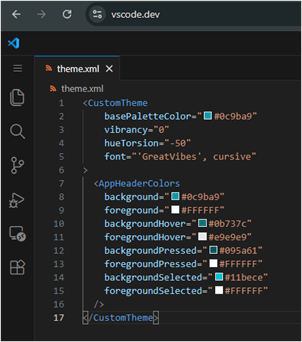
- Our first step would be to create a local xml file that will having our theme metadata. Create an XML file that contains the code below (you can add custom color HEX values).
My theme code snippet:
<CustomTheme
basePaletteColor=”#0c9ba9″
vibrancy=”0″
hueTorsion=”-50″
font=”‘GreatVibes’, cursive”
>
<AppHeaderColors
background=”#0c9ba9″
foreground=”#FFFFFF”
backgroundHover=”#0b737c”
foregroundHover=”#e9e9e9″
backgroundPressed=”#095a61″
foregroundPressed=”#FFFFFF”
backgroundSelected=”#11bece”
foregroundSelected=”#FFFFFF”
/>
</CustomTheme>
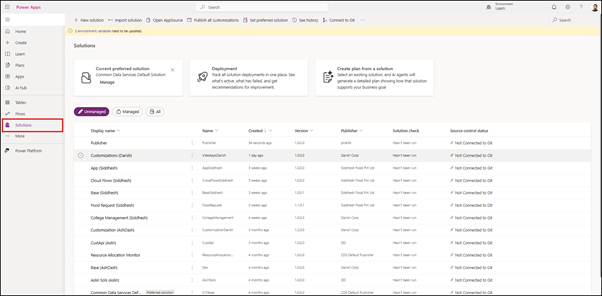
- Create/open a solution of your choice. It would be preferable to use a new solution to maintain these settings/configurations separately.
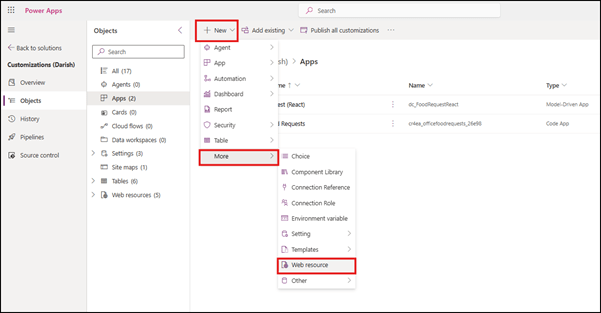
- After opening your solution, click on New > More > Web resource.
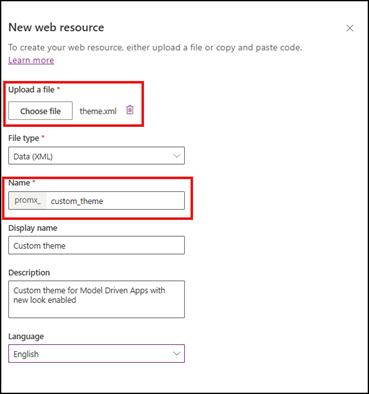
- Upload your theme xml file which we created in our first step. Use a simple and easily distinguishable logical name for the resource. The file type will be automatically populated, and the additional details can be entered manually. Finally, save the web resource and publish it.
- After saving the XML web resource, within the same solution click on Add existing > More > Setting.
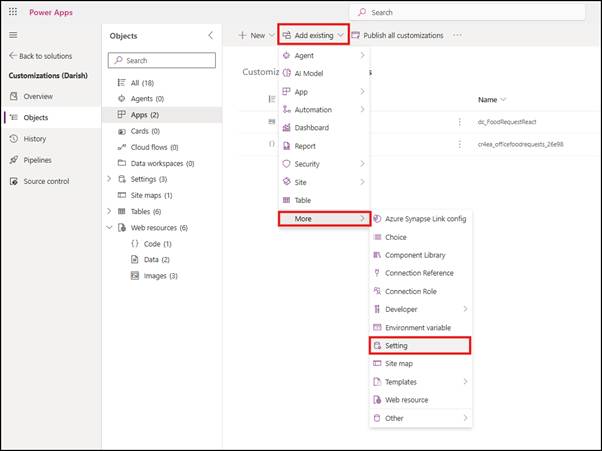
- Search and add “Custom theme definition” to your solution.

- Select the added setting variable and click on “Edit” from context menu.
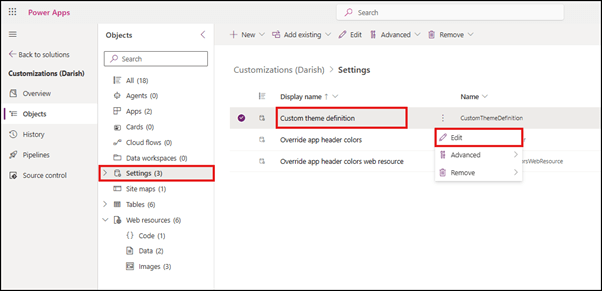
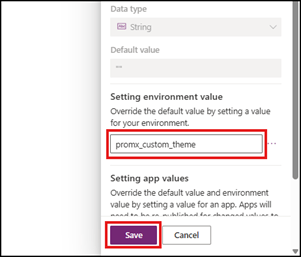
- Replace the double quotes with the logical name of your XML web resource along with the prefix. Refer step 4 for more clarifications. After carefully adding your web resource name, click on “Save”.
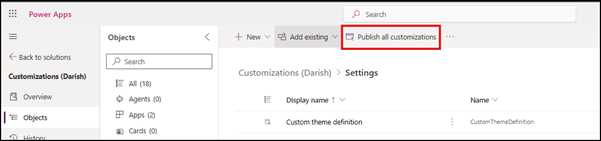
- Click on “Publish all customization” to publish your custom theme and its configuration.
- After a few minutes, your changes will reflect and you’ll be able to see your modern look enabled model-driven app with the new theme including the custom font value and custom colors.
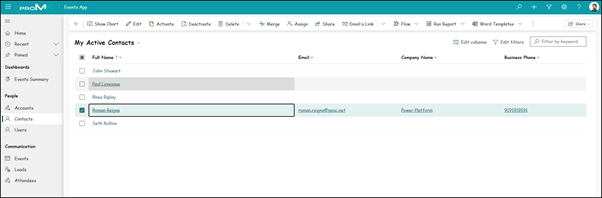
- You can use better, more sophisticated colors to make your model-driven app look more modern, stylish and fresh.
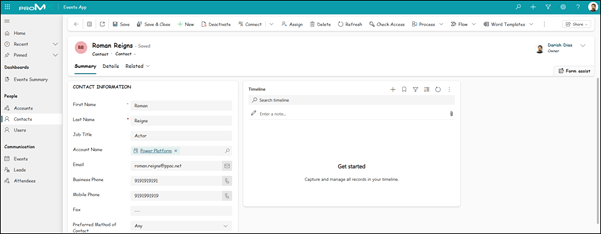
Any modifications to the theme can be made via updating XML file and updating the XML web resource with updated XML file.
Note: You can upload a custom app logo (SVG/PNG/JPG web resource) via classic theme setting and the logo in the default theme will be used for the model-driven app.
Considerations and Limitations
- Modern look required: Only works with modern refreshed theme enabled.
- Limited overrides: Colors, fonts, basic spacing only, no control-level styling.
- Global application: Affects entire app, no page-specific themes yet.
- XML validation: Malformed XML prevents loading (use validator).
- Browser caching: Need to clear cache for immediate preview of changes.
Conclusion
Modern Theme Overrides in model-driven apps solve the customization vs. modernity dilemma perfectly. With simple XML uploads, you achieve enterprise branding while enjoying the full Fluent 2 experience responsive and accessible. As PowerApps evolves, expect more granular controls and designer integration. If you’re in D365 or Power Platform space, enable this now to deliver branded apps that impress users without sacrificing design excellence.
Thank you, Darish for your valuable inputs to this blog!

 D365 Feeds