
Introduction
In project execution, small interruptions can slow teams down especially when users must open multiple screens just to update task details. In Microsoft Dynamics 365 Project Operations, users often work extensively in the task grid, and switching away from it to update task information can break their workflow.
To solve this, Microsoft is introducing a new feature that allows users to customize the Task Details pane directly within the task grid. This enhancement gives teams a smoother, more flexible, and more efficient way to manage tasks without leaving the grid.
Problem Statement
Today, when users click the information (i) icon next to a task name, the Task Details pane opens. This pane is part of Project for the web and is embedded using an iframe.
Because of this setup:
- The task details pane is not customizable.
- Users must rely on a fixed layout that may not match business needs.
- For additional fields or validations, users often have to open separate forms, causing context switching.
This limits flexibility and slows down task updates, especially for organizations with custom processes and validations.
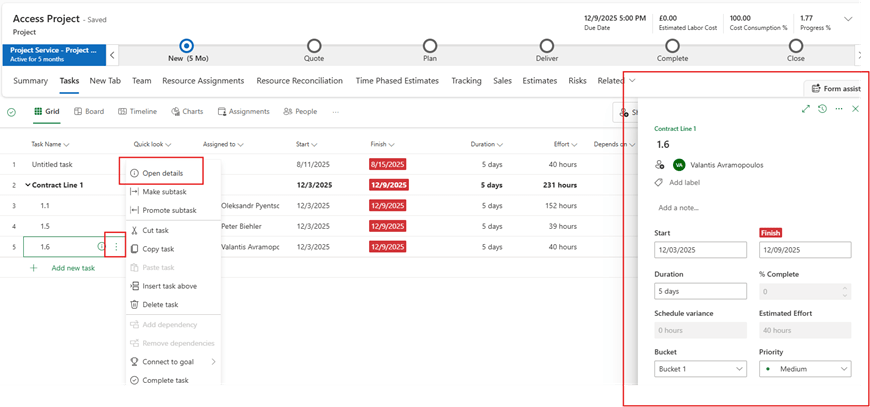
The Update – Customizable Task Details Pane
With this new feature, Microsoft introduces a customizable task form that opens directly from the task grid.
Once enabled:
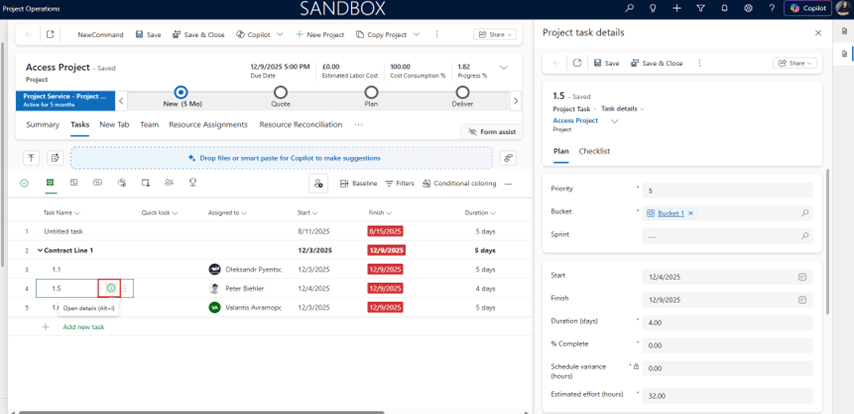
- Clicking the (i) icon opens a Dataverse-based customizable task pane instead of the fixed iframe pane.
- Users can manage all important task details in one place, without leaving the grid.
- Organizations can tailor the task experience to suit their unique processes.
This brings task management closer to how users can work quickly, focused, and uninterrupted.
How It Works:
Enabling the Feature
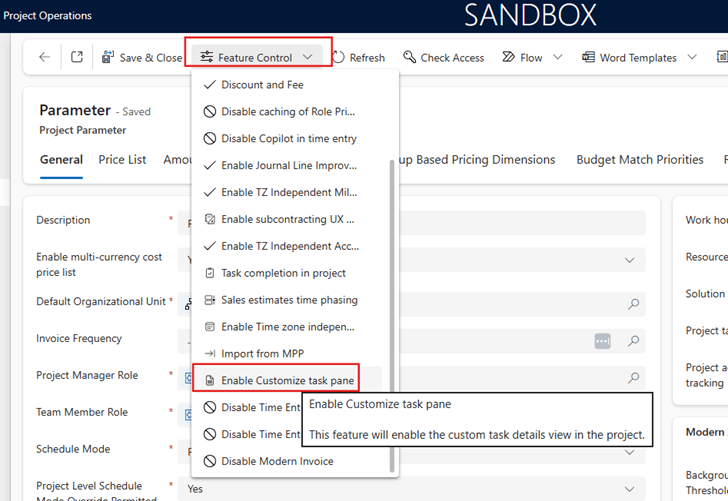
- Go to Settings -> Parameters -> Project Parameters.
- In Feature Control, select “Enable Customize Task pane.”
- Once it is enabled, In the Task Grid, select the (i) icon next to a task.
- A customizable Task Details pane opens directly within the grid view.
- Admins and makers can:
- Add or remove fields
- Reorder fields
- Configure validations
- Trigger business workflows etc.
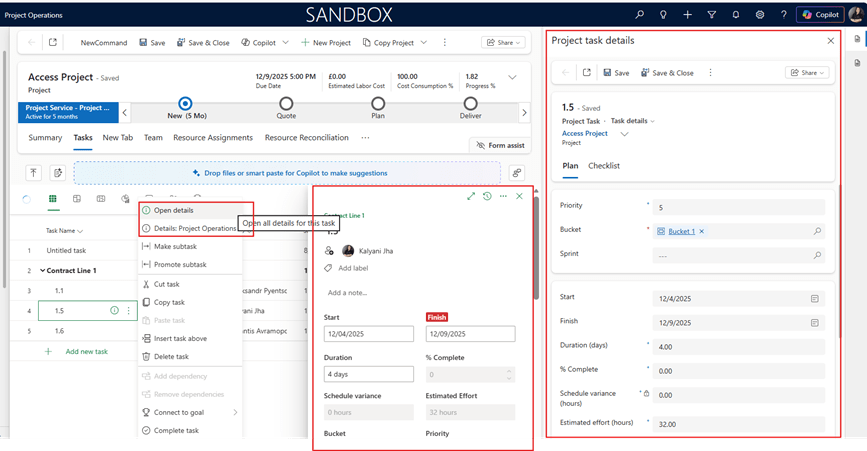
- Users can still access the standard Project for the web task pane from the overflow menu, if required.
This means you have the flexibility to choose between the custom Dataverse task pane and the default Office pane.
Example Scenario
Let’s look at a simple example.
A project team tracks tasks with additional information such as:
- Risk level
- Delivery owner
- Internal review status
Earlier, users had to:
- Open separate forms to update these details, or
- Manage them outside the task grid entirely.
With this new feature enabled:
- The project manager clicks the i icon next to the task.
- All required custom fields appear directly in the task pane.
- Validations and workflows trigger automatically when fields are updated.
The task is updated without leaving the grid, saving time and reducing errors.
Conclusion
The Customizable Task Details Pane is a powerful enhancement. It removes the limitations of the fixed iframe-based task pane and gives freedom to design task experiences that truly fit their way of working.
By enabling in-grid customization and reducing workflow interruptions, this feature helps teams manage tasks faster, cleaner, and smarter.
Thank you, Kalyani for your valuable inputs to this blog!

 D365 Feeds