
Introduction
In this blog, I’ll show how to use the Transcribe Audio connector step by step — from uploading an audio file, to transcribing it, and finally retrieving the transcribed text using the polling mode method.
Voice is becoming an important part of modern automation. From voice notes to meeting recordings, people want faster ways to turn audio into useful text. Until now, doing this inside Power Automate meant relying on custom APIs or external tools — but not anymore.
The AssemblyAI connector makes it easy to convert speech to text directly within your Power Automate flows. You can send audio files, generate transcripts, and even analyze the content — all without leaving the Power Platform.
Problem Statement
In many business scenarios, users record audio through applications — for example, capturing meeting notes, customer calls, or field updates. However, Power Apps does not provide a native way to convert recorded audio into readable text that can be stored or analyzed in Dynamics 365 or Dataverse.
Manually processing these audio files is time-consuming and inefficient. What’s needed is a simple, automated approach to upload, transcribe, and retrieve text from audio within the Power Platform environment, without relying on external scripts or custom APIs.
Solution
In this example I’ll be using canvas apps and power automate to demonstrate,
Step 1 :
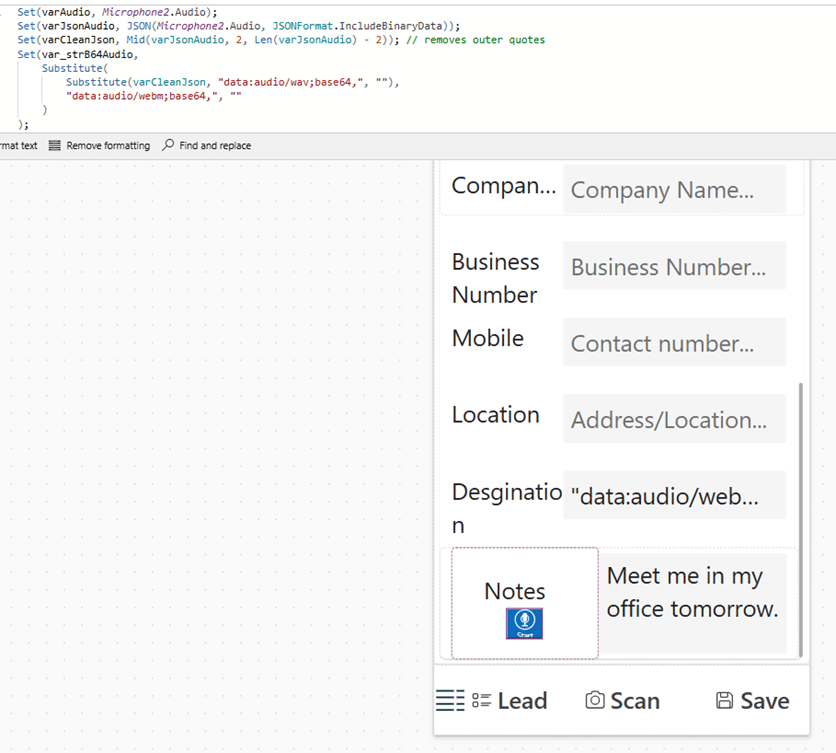
As you can see I’ve added a Microphone control in my app , and on its on stop property I’m parsing it using Json() , getting rid of the quotes and finally removing prefixes so we get the pure base64 text. Which I’ll send to power automate.
Step 2:
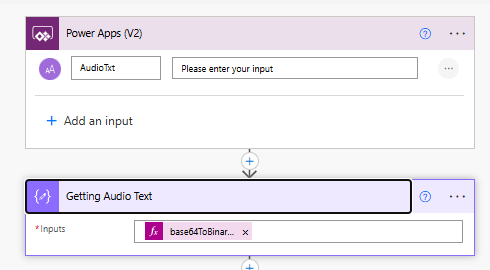
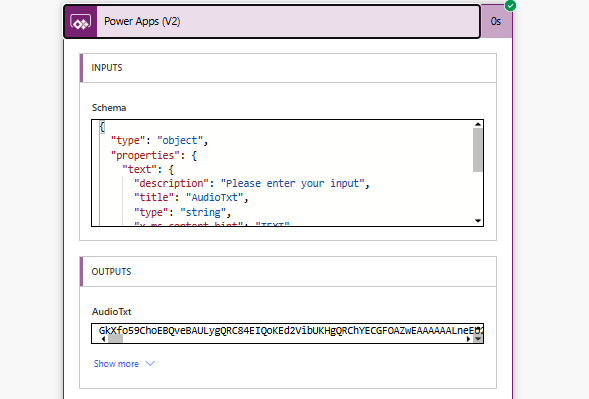
Here I’m converting the plain text using function base64ToBinary().
Step 3:
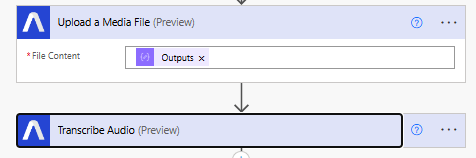
Here I’m using the Assembly AI Actions , 1st I’m uploading a File using Upload a Media File , which outputs a URL of the file . This URL is needed to Transcribe Audio so the output of Upload a Media File goes as input in Transcribe Audio also the status changes to queued we have to wait for this to process, and be completed. Also the Transcribe Audio action has a dozen optional settings like :punctuate, language detection ,Format, Audio Start From/End At etc which you are free to try out.
Step 4 :
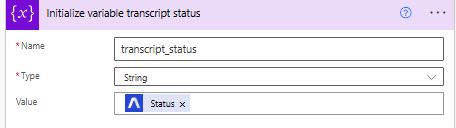
I’m initializing a variable which stores the Status of the transcribe Audio component.
Step 5:
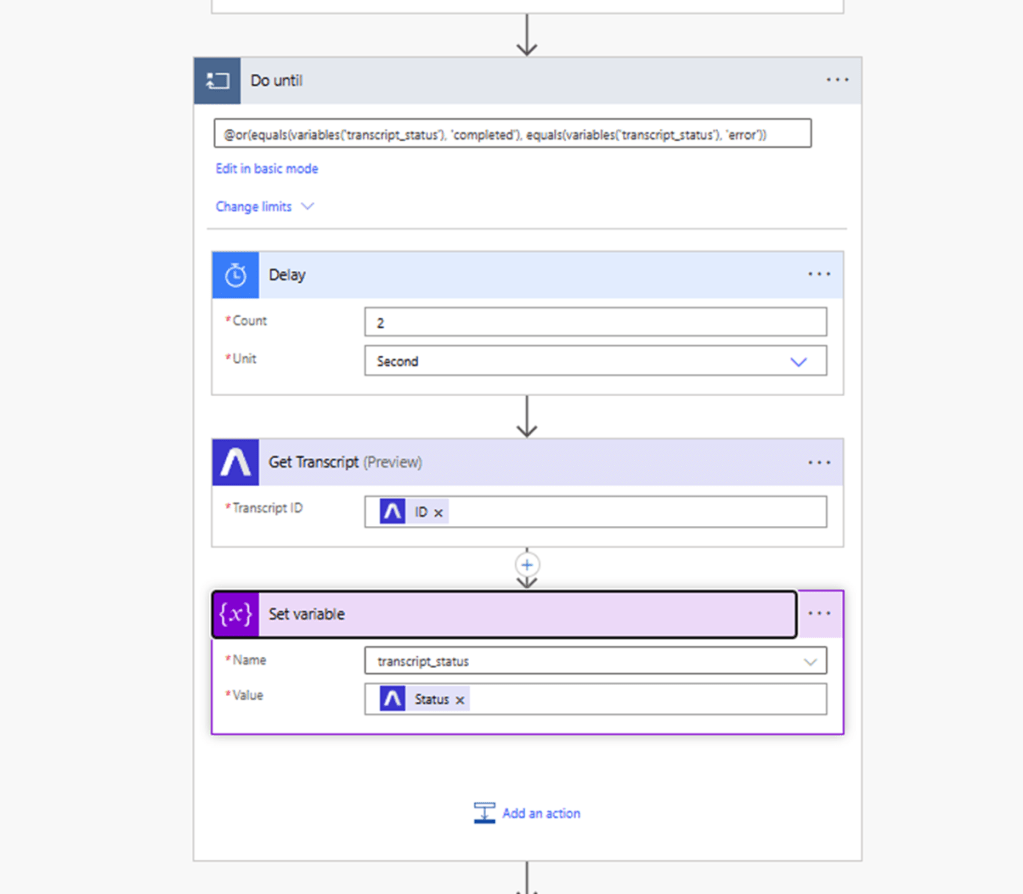
Further I’m fetching the id to see if its updated until the status shows completed or error.
Step 6:
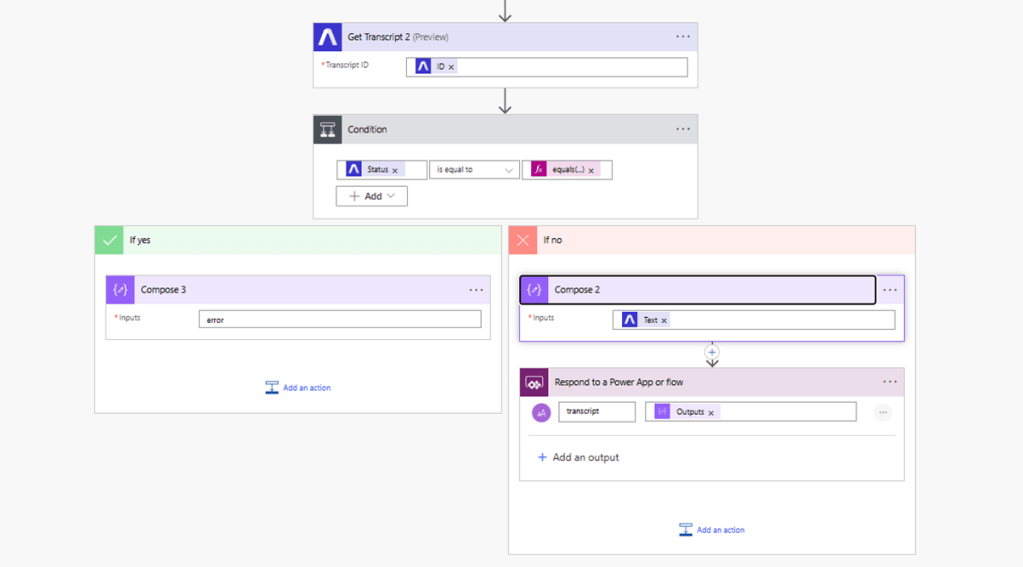
Then it’s the easy part where I just made sure if the status is actually completed then just store the text output generated by the action and send the response to my Canvas App.
Output :
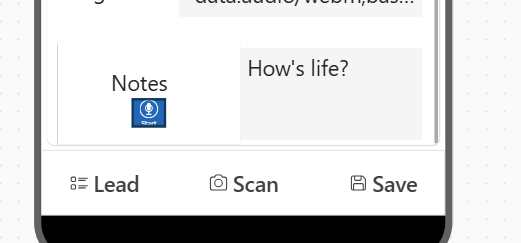
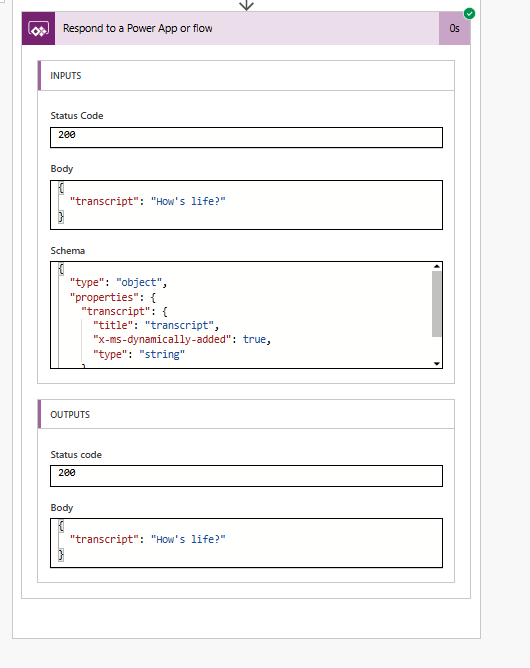
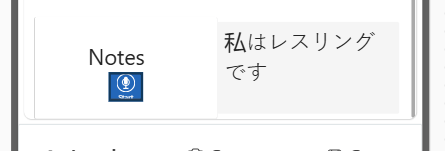
Here’s me trying Japanese :
Conclusion:
This is an awesome feature which we are getting as Power Apps is evolving. The feature is still in preview maybe because of that, the accuracy of the output isn’t that great somewhere around 60-70% but with time it might get better as well.
Thank you, Aslin Dcunha for your valuable inputs to this blog.

 D365 Feeds