
Overview:
This blog is regarding a new feature named “Material Pricing Methods” in D365 Project Operations and how you can get familiar with the topic.
Solution:
Steps to import a file in Project
- Go to the Settings area in Project operations and select parameters.
- On the ribbon, open Feature Control, and click on Enable Material Pricing Methods.
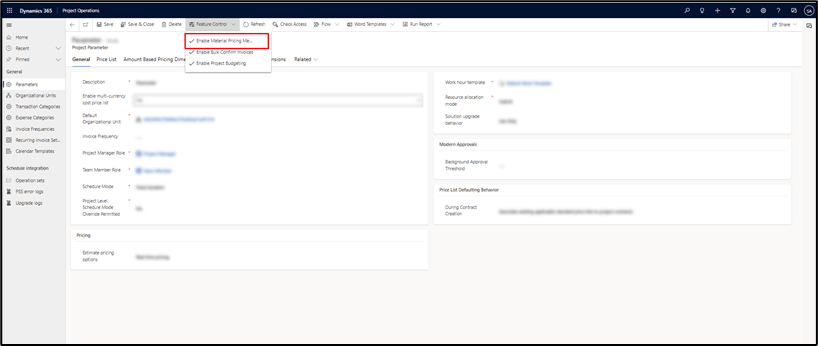
- A confirmation dialog box will pop up, click on ok.
- The feature capabilities will be activated.
How to setup a material pricing on price list item:
- Go to your price list, and select “Project Price List” form and you will see the Material Prices Tab.
- Click on the existing line or create a new record.

- On that record, select the “Project Price List” form and you will see a new section “Project Pricing” which gets added as shown below:
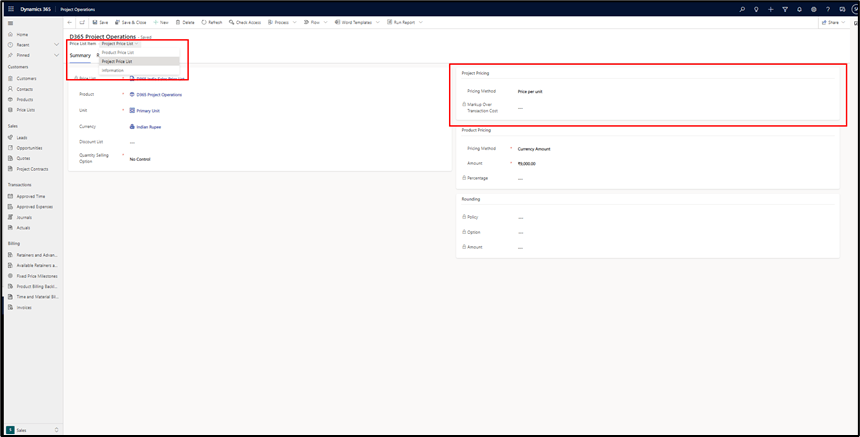
- On the pricing method field, you get 3 options as shown in below image:
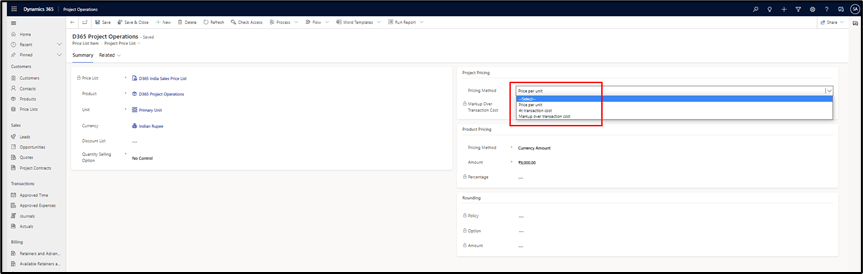
Price per unit – The price of the material is set to the amount that is specified in the Currency amount field.
At cost – The transaction cost of the material is set as the sales price of the material.
Markup percentage: The sales price of the material is calculated as a markup percentage over the transaction cost of the material.
Example:
Lets assume that we have Product “A“ with a transaction cost of Rs. 1000 and currency amount is set to Rs. 1500 , the unbilled sales actuals per unit will be calculated as follows:
| Product | Project Pricing method | Markup percentage | Sales Price |
| A at Cost | At Cost | 1000 | |
| A at markup % | Markup Percentage | 10 | 1100 |
| A at price per unit | Price Per unit | 1500 |
Conclusion:
It gives flexibility for the customer and even to the user to select the pricing method which is more suitable for their business.
Thanks, Sankalp for your valuable inputs

 D365 Feeds