
Sometimes, it is important to quickly understand the key information about a record without having to navigate through multiple screens, tabs, or related records. AI-powered capabilities in Microsoft Power Platform are increasingly making these scenarios more intuitive and interactive.
One such feature is Row Summary for model-driven apps. Row Summary provides a brief, AI-generated overview of a record, helping users quickly understand its most important details without manually reviewing every field on the form.
The feature can be enabled for both out-of-the-box (OOB) and custom Dataverse tables, making it useful for a wide range of business scenarios.
Let’s take a closer look at how it works.
Example:
Suppose we have a custom Dataverse table called Flight. A Flight record may contain several pieces of information, such as the flight number, departure and arrival details, passenger information, status, and other related data.
Instead of navigating through multiple fields or sections to understand the record, Row Summary can provide the key information in a concise summary, allowing users to understand the record briefly.
Enable Row Summary:
First, we need to enable the required configuration in the Power Platform environment.
Navigate to: Power Platform admin center → Copilot → Settings
Look for the Power Apps’s Row summaries option and click on it.
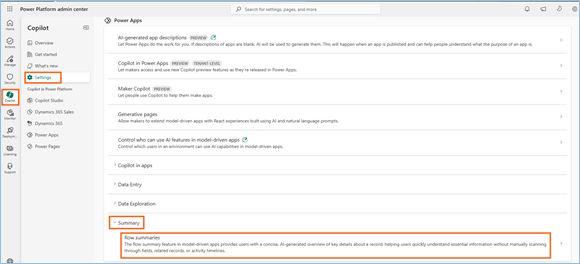
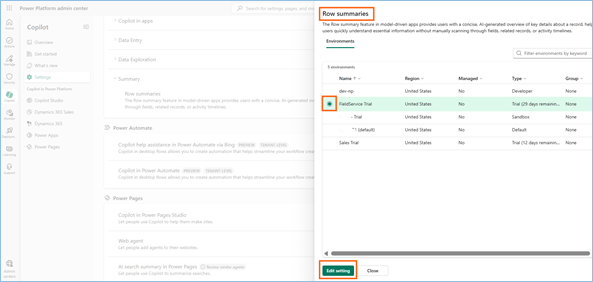
Once we select the Power Apps Row summaries option, we will see a list of available environments.
Select the environment where you want to enable the Row Summary feature, and then click Edit Setting.
In the settings panel, select the On option to enable Row Summary for the selected environment, and then click Save.
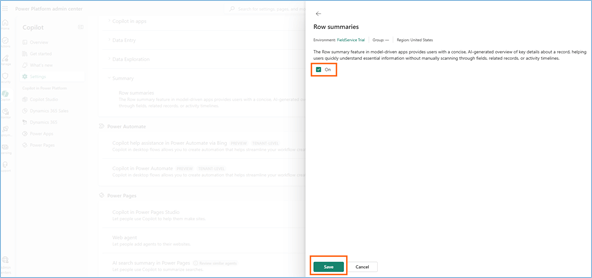
The feature is now enabled for the selected environment and can be configured for use within your model-driven app.
Now, let’s move to the table and see how we can enable and use Row Summary.
For this scenario, we are going to enable Row Summary for our custom Flight table. I have opened a Flight record and am currently viewing its form.
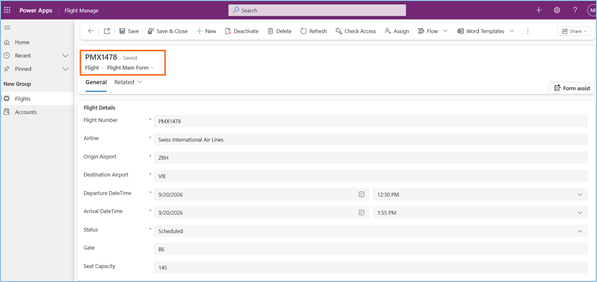
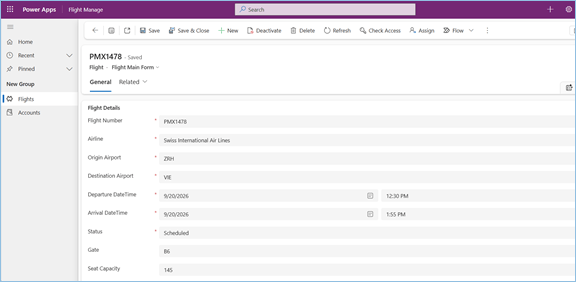
As you can see, there is no Row Summary available on the page yet. This indicates that Row Summary has not been enabled or configured for this table.
Next, let’s see how we can enable Row Summary for the Flight table.
Go to Power Apps and open the Flight table. In the table properties, navigate to the Customization section.
Here, you will find the Row Summary option. Select it to open the Row Summary configuration and proceed with enabling it for the table.
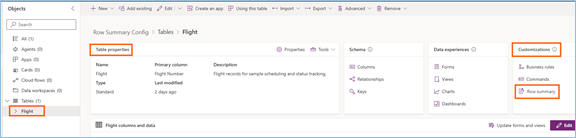
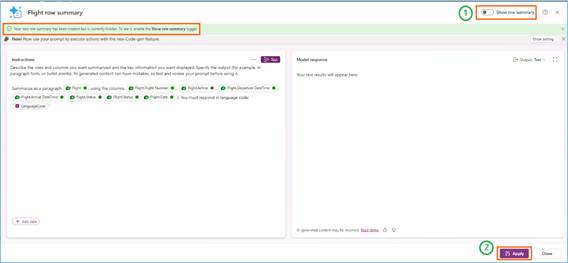
When we select the Row Summary option, we are redirected to the AI Prompt configuration screen.
Here, we can customize the instructions that the AI will use to generate the summary. We can also add additional fields from the table if we want specific information to be included in the summary.
To add a field, simply type / in the prompt. A dialog will appear displaying the available fields from the table. We can then select the required fields and include them in the AI prompt.
This allows us to control what information the AI considers when generating the Row Summary for each Flight record.
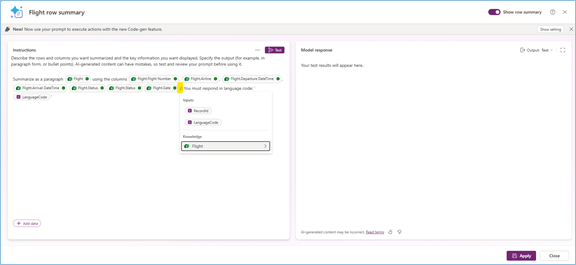
Now, add the required fields to the AI prompt and click the Apply button.
Once the configuration is saved successfully, a notification will appear at the top of the screen confirming that the changes have been saved.
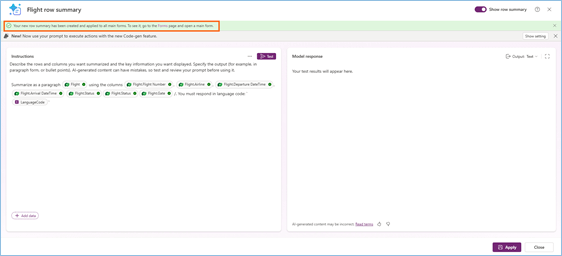
Now, let’s close the configuration window and navigate back to the actual Flight record to view the Row Summary.
Additionally, after closing the configuration window, we can verify that Row Summary is now enabled for the Flight table. Go back to the table properties and open the Customization section. The Row Summary option will now show as Row summary (applied).
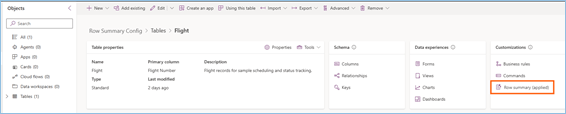
Next, let’s open a Flight record and see the AI-generated summary in action.
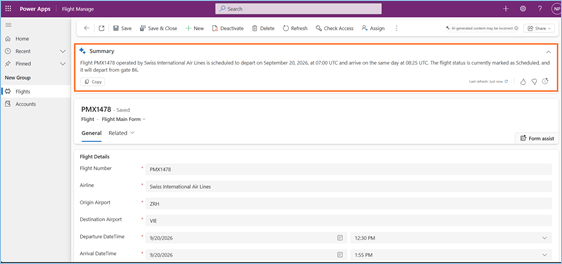
Now, let’s navigate to the main view of the Flight table.
When we hover over the Primary Column of a record, we can see the AI icon. Click on the AI icon to open the Row Summary.
The AI-generated summary will be displayed, providing a quick overview of the most important information from that record without requiring us to open the full record form.
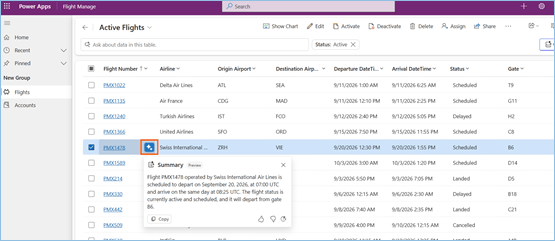
With these steps, we can enable the Row Summary feature for any tables and configure the summary based on our specific instructions and the fields we want the AI to consider.
Disable Row Summary:
We can also disable Row Summary for a table whenever it is no longer required.
To disable the feature, open the Row Summary prompt for the respective table. In the prompt configuration screen, we will find the Show Summary toggle in the top-right corner.
Turn the Show Summary toggle Off and click Save.
Once the changes are saved, reopen the record or navigate back to the table view. The Row Summary will no longer be available on the record form or from the table view.
This gives us the flexibility to enable or disable AI-generated summaries at the table level based on the requirements.
Conclusion: With the Row Summary feature, we can quickly view a brief, AI-generated overview of a selected record directly within Model-Driven Apps, without having to go through every field or navigate across multiple screens.
One of the key advantages is the flexibility it provides. We can customize the summary instructions, add relevant fields, or disable the feature based on our specific business requirements.
Thank you, Nisha Pawar for your valuable inputs to this blog.


