
Problem Definition
Organizations frequently use Microsoft Project (.MPP) files for detailed project planning while using Dynamics 365 Project Operations for project execution and management.
Previously, importing an MPP file always resulted in the creation of a new project. There was no option to import project schedules into an existing project. This limitation made it difficult for teams that performed planning in Microsoft Project and managed delivery within Project Operations.
As a result, project managers often had to recreate project structures manually, maintain duplicate projects, or spend additional effort keeping project plans synchronized across systems.
Solution
Dynamics 365 Project Operations now allows users to import Microsoft Project (.MPP) files into existing projects.
During the import process, users can choose whether the MPP file should create a new project or update an existing one. This enhancement simplifies project maintenance, reduces manual effort, and provides greater flexibility when integrating schedules created in Microsoft Project.
The feature also allows key project attributes to be updated directly during the import experience.
Key Capabilities
- Import MPP files into existing projects.
- Continue supporting imports for new projects.
- Reuse project schedules and work breakdown structures.
- Reduce manual project setup activities.
- Update project attributes during import.
- Configure Contracting Unit and Owning Company.
- Eliminate unnecessary duplicate project creation.
- Improve project planning and management efficiency.
Implementation
To understand this feature, we explored the enhanced MPP import experience in Dynamics 365 Project Operations.
Step 1: Open Project
Navigate to Dynamics 365 Project Operations.

Figure 1: Open project page.
Step 2: Start the Import Process
Select the option to import a Microsoft Project (.MPP) file.
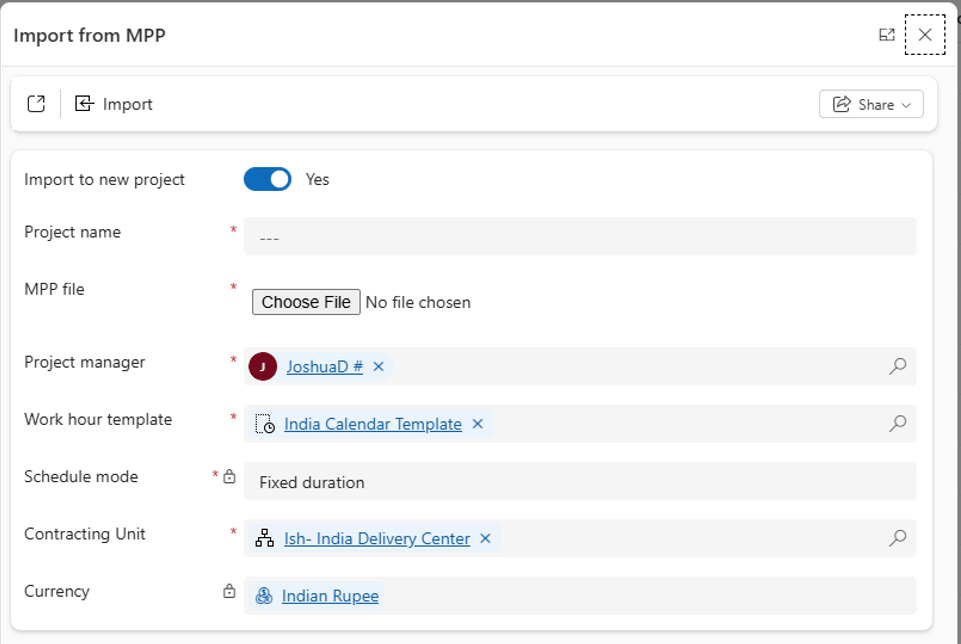
Figure 2: Launching the MPP import process.
Step 3: Select the MPP File
Browse to and select the Microsoft Project file containing the required project schedule.
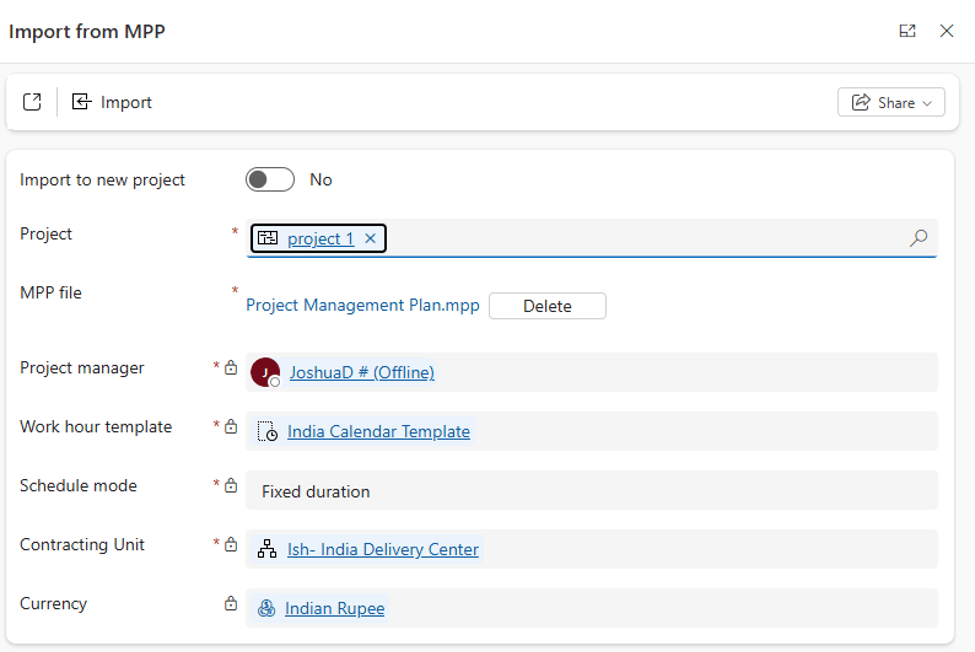
Figure 3: Selecting an MPP file for import.
The enhanced import experience provides two options:
Create a New Project
Import into an Existing Project
Select Import into Existing Project to update an existing project record.
Step 5: Review and Update Project Information
Before completing the import, review project details and update important attributes if required, including:
- Contracting Unit
- Owning Company
Step 6: Complete the Import
Proceed with the import process. The system imports the work breakdown structure and project planning information based on the selected option.

Figure 6: Completing the MPP import.
Conclusion
The ability to import MPP files into existing projects addresses a long-standing limitation in Dynamics 365 Project Operations.
What stood out most during this review was the added flexibility for organizations that use Microsoft Project for planning and Project Operations for project management. Users can now update existing projects without creating duplicate records or manually rebuilding project schedules.
By enabling imports into both new and existing projects, while allowing project attributes to be updated during the process, this enhancement streamlines project planning and helps teams manage projects more efficiently.
Release Information: As part of Dynamics 365 Project Operations 2025 Release Wave 1, Microsoft introduced the ability to import Microsoft Project (.MPP) files into existing projects. The feature was made available for public preview on August 1, 2025, and reached general availability on August 4, 2026.
Thank, Joshua D’Costa for your valuable insights to this blog.


